
Video Price Quote Demo 7 min w/ audio
Price Quote via the Actions Menu Dropdown
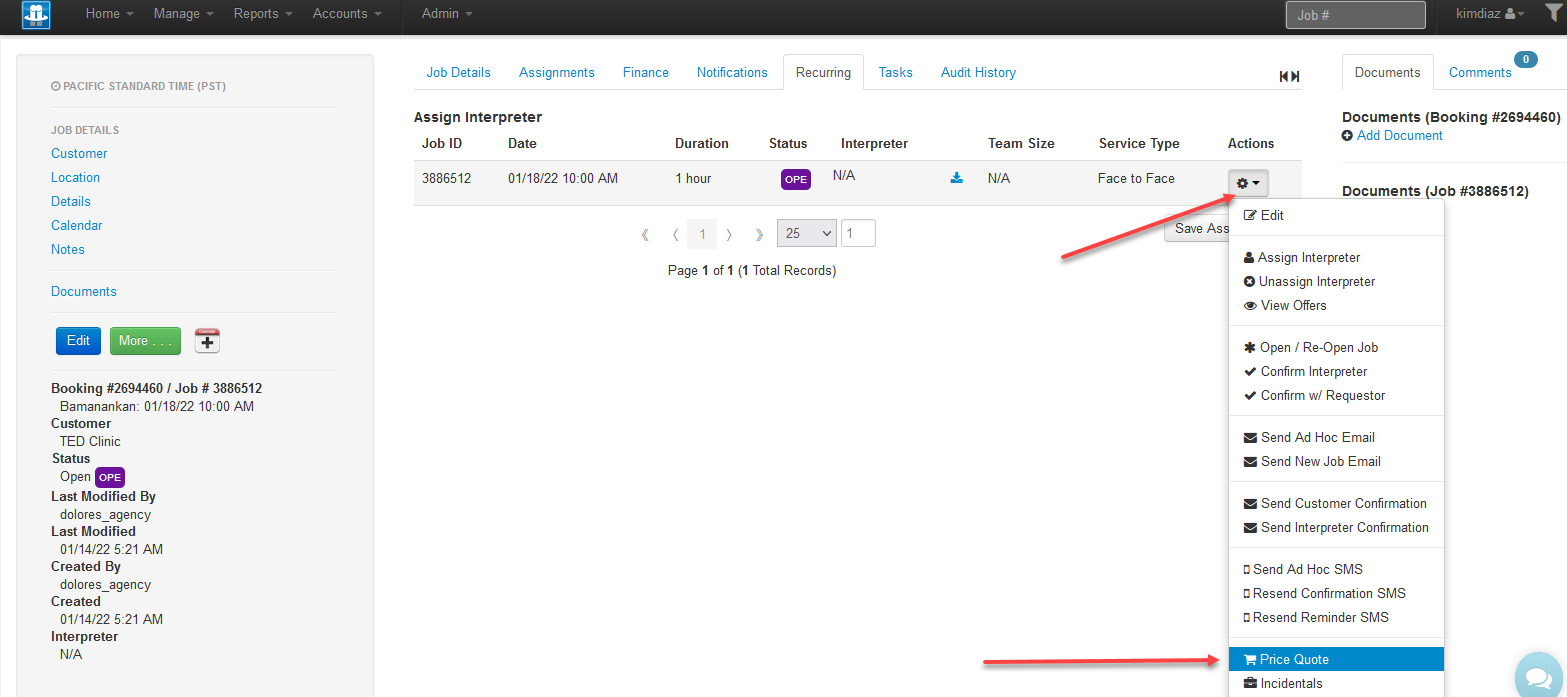
From any of the Actions dropdown menus (e.g. from Manage Jobs or from the Recurring tab), click on 'Price Quote'. This opens a Job Quote popup window.
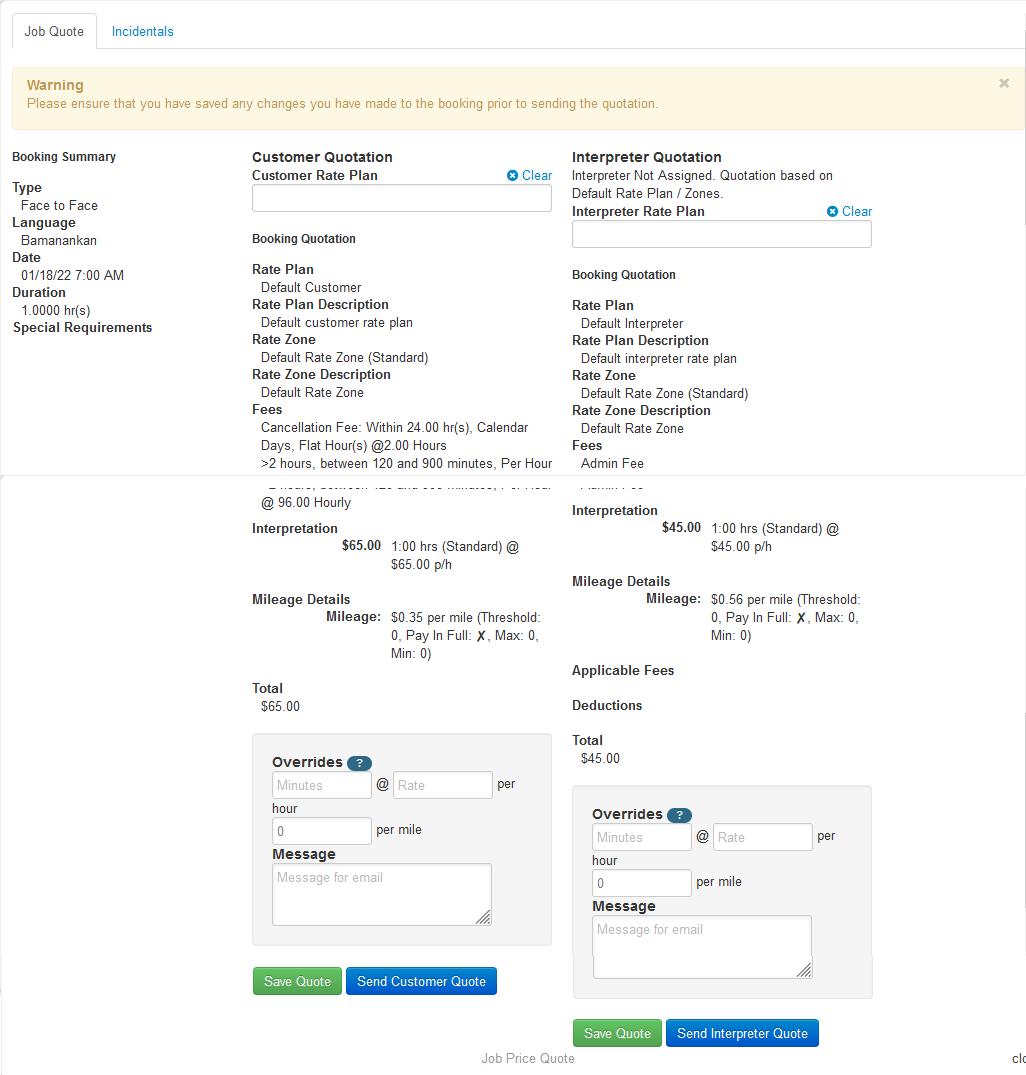
Under 'Customer Quotation' enter in the name of a different rate plan if you want to override with an existing rate plan, or you can override the length of the job and the rate (90 min. @ 100/hr) in the Overrides section below. Mileage can also have an override($/mile). A message can be included that will go out in the email.
The quote can be saved and/or it can be emailed to the customer.
The same quote options are available for the Interpreter. If no interpreter is assigned to the job, the rates displayed are from the default rate plan rates; the user can still enter values in the Override fields and click 'Save Quote'. After an interpreter is assigned, this quote can be emailed to the interpreter using the 'Send Interpreter Quote' button. A rate plan cannot be selected as an override until an interpreter is assigned to the job.
Saving the Quote: Enter the number of minutes, the rate and the rate per mile in each of the override fields and click 'Save Quote'. This replaces the hourly rate of the interpreter's rate plan. You must enter the per mile amount as well; this defaults to zero and will not pay a per-mile amount if it is not filled out.
Send job offers to interpreters per the usual process; the override amount(s) will display in the job offer for this job only; it will not affect the rates of other jobs if this is a recurring series.
Send Interpreter Quote: After an interpreter is assigned, using the Price Quote button from the Action dropdown menu, enter the rates in the override fields. Save Quote. Click 'Send Interpreter Quote'. This will send the Interpreter Quotation notification email containing the quote. If the interpreter accepts the quote, they can click a 'Confirm Job' link displayed in the email. Previewing the job in Financial Review displays the quoted rates for the job.
Change Interpreter Quote: After an interpreter is assigned, click on the Price Quote button from the Action dropdown menu. The most recent quote override is displayed. To override that override, either revise the amounts in the override fields and Save, or clear the fields and select a different rate plan and Save. Note: The mileage field must have a value in it; please use 0 as the value if no mileage override is being made.
Job Price Quote and Booking Price Quote
- Job Price Quote is emailed from Job Edit page (green button). This does not allow the user to enter an Override rate. This sends a quote to the customer using their associated rate plan interpretation rates, cancel fees and/or rush fees if applicable and mileage details if applicable. This quote is on a per job basis.
- Booking Price Quote is emailed from Job Edit page (green button). This does not allow the user to enter Override rates. This sends a quote for the entire booking; each job is listed in digest format with customer rates, cancel and/or rush fees and mileage if defined in the currently associated rate plan. To include override rates, the overrides must be defined on an individual-job basis first, then when the Booking Price Quote is sent, any jobs with overrides will display the corresponding amount and any jobs without an override will display the rates associated with the rate plan.
-
Notes
- If customer rate plan is using Interpreter Rates setting, the interpreter hourly rate of pay displays instead of the customer but the cancel, rush, misc. fees from the customer rate plan display on the quote.
- If the customer rate plan is using the Interpreter Rates setting and the interpreter rate plan is missing hourly rates set up for a specific service, a message displays on the quote indicating there are missing rates and naming the related rate plan.
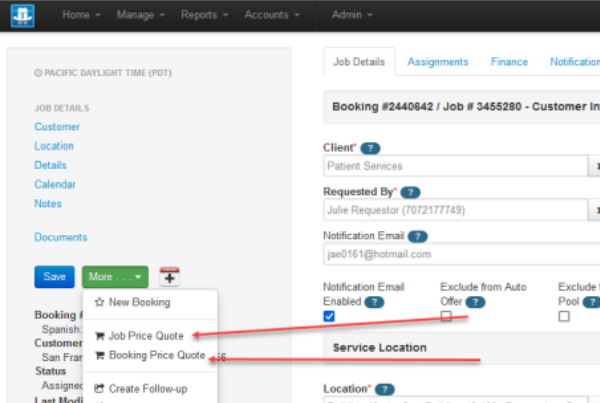
Job Price Quote & Booking Price Quote both working from Green button inside Job Details; Single, team jobs and recurring.
An observation - for team Jobs, the Job Price Quote sends for both Jobs/visits, only at Job level.
Job Price Quote:
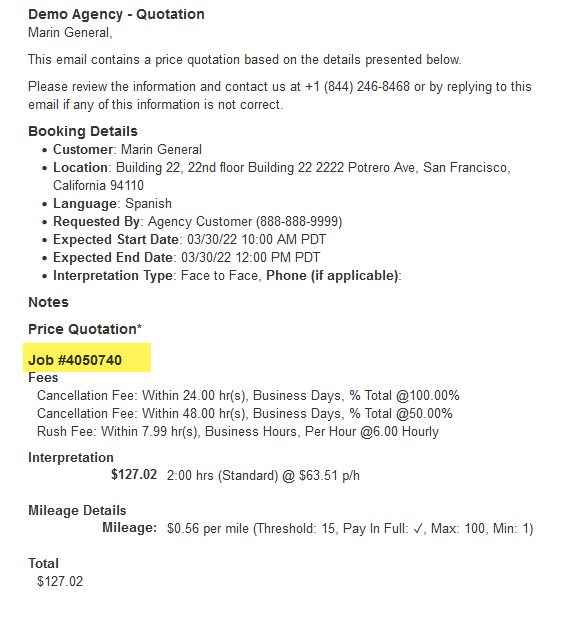
Booking Quote:
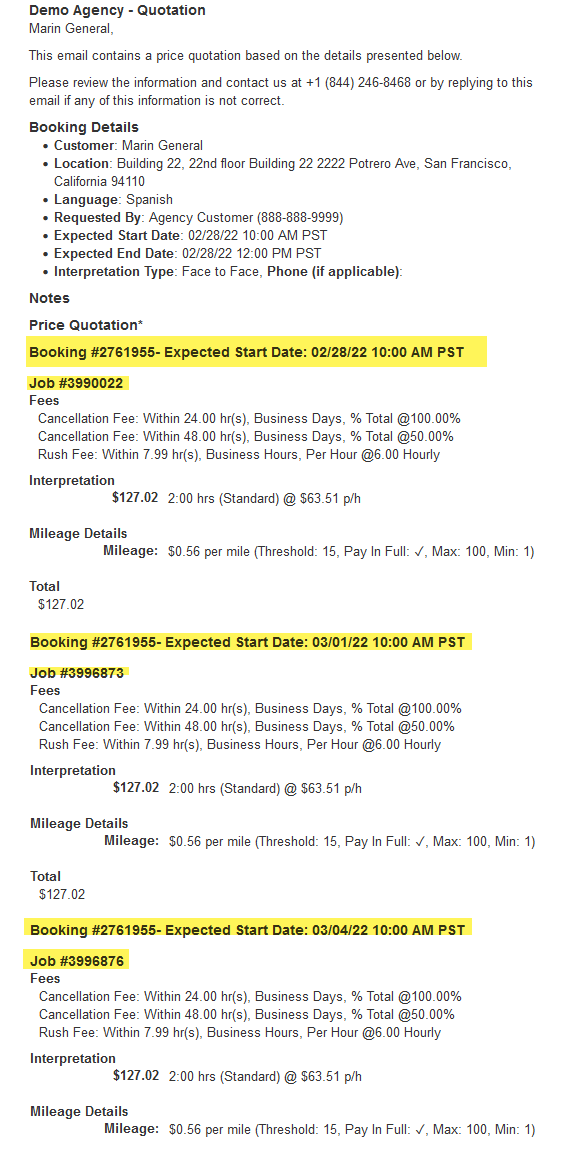
BookingQuotation from ad hoc email: There is no JobQuote template from ad hoc email
The customer quote goes to the requestor email only.
There is a quote template which can be modified on the company level; it cannot be modified per customer. The default sentence "...good for 24 hours..." takes no action after 24 hours, the quote remains in effect until modified by the agency.
If you have a recurring job and want to send the quote to the customer for each job in the booking, you need to create and save the quote for each job in the booking first. Then, open one of the jobs in the booking and on the green "More" dropdown you can click on Booking Price Quote. This sends the saved quote to the customer only and displays all of the jobs within the booking each with a quote listed below it.
Issue: Cannot view a quote before it is sent.
Solution: Send an ad hoc email, load the Booking Quotation template and send email to yourself to preview it.
Code Snippet Options
quotedEntity isn’t supported in the Subject line of any price quote template
actualLocationDisplay isn’t supported on quotedEntity Instead, use ${booking?.actualLocationDisplay?:""}
Do not use quotedEntity in any of the other code snippets in the template
expectedStartDate expectedEndDate needs to be :
-
-
${booking?.formatDateTime(booking?.expectedStartDate)?:""} -
${booking?.formatDateTime(booking?.expectedEndDate)?:""}
-
INTERPRETER Snippets to use in email notifications to include Quote information.
The quote popup window displays the default interpreter rate plan rates if no interpreter is assigned to the job.
The quote popup window displays the interpreter's associated rate if they are assigned to the job, or the rates from a different rate plan if manually overridden on the Finance field of the quote, or the hourly rates and mileage entered on the quote.
Sending a Booking Request (Job Offer) and Including the Price Quote
If a price quote snippet is included in the Booking Request email sent to interpreters, this will display the following items, depending on the snippet used in the notification template. The hourly rate quoted is based upon the associated rate plan for each interpreter sent the booking request.
INTERPRETER Quote Snippet Options
Displays rates, mileage (if using) and all fees
${booking.interpreterQuotation(contact)}
Displays rates and mileage (if using). No fees are displayed
${booking.interpreterQuotationDetails(contact)}
CUSTOMER Quote Snippet Options
Displays cancel fee (only from the General page of the rate plan), any other custom Fees & mileage if defined on the rate plan, and the Interpretation hourly rates.
${booking.customerQuotation()}
Displays the hourly rate and mileage if mileage is enabled on RP. Does not display Fees
${quotedEntity.customerQuotationDetails()}
Notes:
Mileage: If there is a mileage rate entered on the rate plan, the mileage displays in the price quote, otherwise no mileage displays.
Cancel Fee does not display in price quote unless defined on the General page of the RP - the Cancel Fee does not pick up from the individual service rate levels.
VAT/Tax does not display in any price quote.
Default code - Customer Price Quote Template
SUBJECT LINE
${company.name} - Customer Quotation
HTML BODY
<p>${customer?.name?:""},</p> <div><p>This email contains a price quotation based on the details presented below.</p> <p>Please review the information and contact us at ${company.primaryNumber?.displayLabel} or by replying to this email if any of this information is not correct.</p></div> <h4>Booking Details</h4> <ul> <li><strong>Customer</strong>: ${quotedEntity.customer?.name?:""}</li> <li><strong>Location</strong>: ${booking?.actualLocationDisplayLabel?:""}</li> <li><strong>Language</strong>: ${quotedEntity.language?.description?:""}</li> <li><strong>Requested By</strong>: ${quotedEntity.requestor?.displayLabel?:""}</li> <li><strong>Expected Start Date</strong>: ${booking.formatDateTime(booking.expectedStartDate)?:""}</li> <li><strong>Expected End Date</strong>: ${booking.formatDateTime(booking.expectedEndDate)?:""}</li> <li><strong>Booking Mode</strong>: ${booking?.bookingMode?.name?:""}</li> </ul> <h4>Notes</h4> <p>${quotedEntity?.bookingDetails?:""}</p> <h4>Price Quotation*</h4> <p>${quotedEntity.customerQuotation()}</p> <p>* Prices quoted are valid for 24 hours</p> <p>To confirm your acceptance of this quote, simply reply to this email in the affirmative. If contacting us directly be sure to quote the booking reference (#${quotedEntity.quotationId}) in all correspondence.</p> <p> </p> <p>Best Regards, The ${company.name} Team</p> <p>${company.primaryNumber?.displayLabel}<br /> ${company.primaryEmail?.displayLabel}</p>
Default code - Interpreter Price Quote Template
SUBJECT LINE
${company.name} - Interpreter Quotation [Ref #: ${booking.id}][${dateTimeFormat.format(booking.expectedStartDate)} ${booking?.getTimeZoneDisplayName()}]
HTML BODY
<p>${contact.firstName?:""} ${contact.lastName?:""},</p>
<div><p>This email contains a price quotation based on the booking details presented below.</p>
<p>Please review the booking information and contact us at ${company.primaryNumber?.displayLabel}.</p></div>
<h4>Booking Details</h4>
<ul>
<li><strong>Customer</strong>: ${booking.customer?.name?:""}</li>
<li><strong>Location</strong>: ${booking.actualLocationDisplayLabel?:""}</li>
<li><strong>Language</strong>: ${booking.language?.description?:""}</li>
<li><strong>Requested By</strong>: ${booking.requestor?.displayLabel?:""}</li>
<li><strong>Expected Start Date</strong>: ${booking.formatDateTime(booking.expectedStartDate)?:""}</li>
<li><strong>Expected End Date</strong>: ${booking.formatDateTime(booking.expectedEndDate)?:""}</li>
<li><strong>Booking Mode</strong>: ${booking.bookingMode?.name?:""}</li>
</ul>
<h4>Notes</h4>
<p>${booking?.bookingDetails?:""}</p>
<h4>Price Quotation*</h4>
<p>${booking.interpreterQuotation()}</p>
<p>* Prices quoted are valid for 24 hours</p>
<p>To confirm your acceptance of this quote, simply reply to this email in the affirmative. If contacting us directly be sure to quote the booking reference (#${booking.id}) in all correspondence.</p>
<p> </p>
<p>Best Regards, The ${company.name} Team</p>
<p>${company.primaryNumber?.displayLabel}<br />
${company.primaryEmail?.displayLabel}</p>