
Internal Agency Users - Obtaining an entire calendar as an .ics file
From the Home menu, click on Calendar.
From the Home menu > Calendar menu
Click on Day view to export all jobs for that specific date
Click on Week view to export all jobs for that week
Click on Month view. This will export more than 1 month's worth of jobs, roughly 6 weeks of jobs. You can see the date span the system selects as follows:
Click on to download the .ics file. This file can be imported into a calendar.
Internal Agency Users - Obtaining Interpreter-specific jobs as an .ics file
An internal user can export any interpreter's jobs as an .ics file from the Manage Contacts page. Next to the interpreter's name, click the orange dropdown and click on View Bookings. From that popup, click on 'Export to Calendar' to obtain the .ics file.
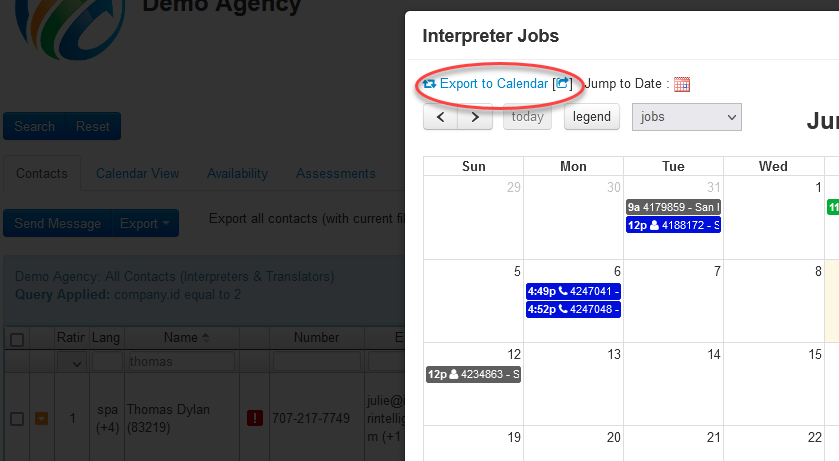
Interpreter Full Site Calendar Export
The interpreter can export a day, week or a month worth of appointments from the full site version by going to Calendar - All Jobs - Export to Calendar to obtain the .ics file.
The link will cover all jobs ranging from the selected period in the calendar view (Month | Week | Day). The link can then be imported to their calendar of choice and assigned to their preferred personal calendar.
Interpreter App Calendar Export
The interpreter can export one day's worth of jobs at a time on the mobile interface by clicking the 'Sync' button. There must be jobs visible on the screen for the Sync button to be active.
When clicking on Sync, if only one job is scheduled for the day, the 'Add to Calendar' option displays. If there are multiple jobs for that date, the user can tap an individual job to add to calendar, or click on "Add All" to add all jobs for that date to the calendar on the user's mobile device.
Updating appointments that have already been added to a calendar
On the mobile app, if the job has already been added to the calendar and the job date, time or details have been updated
Android - Using the Sync button and then adding the updated event will update the existing event details.
iPhone, when iCal is also set up - the app opens the calendar directly. The Sync action should update the existing event details.
Importing the .ics file into a calendar
When opening an .ics file from an attachment in Outlook, it will open as a new calendar, however you can save the .ics attachment to the local computer and import it in to the default calendar to merge both the calendar information.
To add a downloaded .ics file to Outlook > click on Calendar in Outlook > click Add Calendar > click Upload from File > Browse (Download folder) to select file to import > Select a Calendar > Import > View Calendar that was selected for import.
To import a downloaded .ics file to Google > click on Calendars in Google > on left sidebar, click the + on Other Calendars and select Import. Click on the field below the Import "Select file from your computer". Browse to the .ics file and click to select.