
Click here for a full discussion of Scheduling and Job Management.
Click here for videos demonstrating editing Recurring Jobs Editing Recurring or Follow-up Jobs
Follow-up Appointments share the same Booking # but each job has a unique Job #
The Follow-up Appointment function is useful when you wish to create a single follow-up job for the same Customer, Client and Consumer if all parameters on the job are the same as the original (including Reference fields and values from original job), with the exception of the scheduled date, time and duration of the appointment.
Everything above the Calendar section of the original Job will be copied to the Follow-up Appointment/Job. If you make an edit to any of these fields in one job, all of the other jobs will reflect the same edit/update.
An exception to this is that you can modify the Service type without modifying all jobs in the same booking.
Recurring jobs share the same Booking # but each job has a unique Job #
The Recurring Jobs function is useful when you wish to create multiple and regularly scheduled follow-up Jobs for the same Customer, Client and Consumer.
As with Follow-up Appointments, everything above the Calendar section will be copied to the Recurring Job(s) including Reference fields and the values from the original job.
The difference between a Follow-up Appointment and Recurring Jobs is that recurring jobs usually follow a set schedule such as daily, weekly or monthly, and you can create more than one of these in a single action.
If you make an edit to any of these fields in one job, all of the other jobs will reflect the same edit/update with the exception of the Service type which can be modified on a per-job basis.
Duplicate jobs DO NOT share the same Booking # and each job has a unique Job #
The Duplicate Job function is useful when you wish to create a single Job where many but not all of the parameters are the same as the original Job.
As with Follow-up Appointments and Recurring Jobs, everything above the Calendar section will be copied to the Duplicate Job including Reference fields and their values.
The main difference between a Follow-up or Recurring job and a Duplicate job, is that a duplicate, once created, will no longer be related to the original job. The Audit History displays information regarding the creation of a duplicate from an existing job, however, there will be no other jobs listed under the Recurring tab of the duplicated job and it will not share a Booking # with the original job.
Therefore you can change any information on the duplicate job without affecting the original job while saving time on data entry.
Create Team Jobs with Different Languages within the same booking
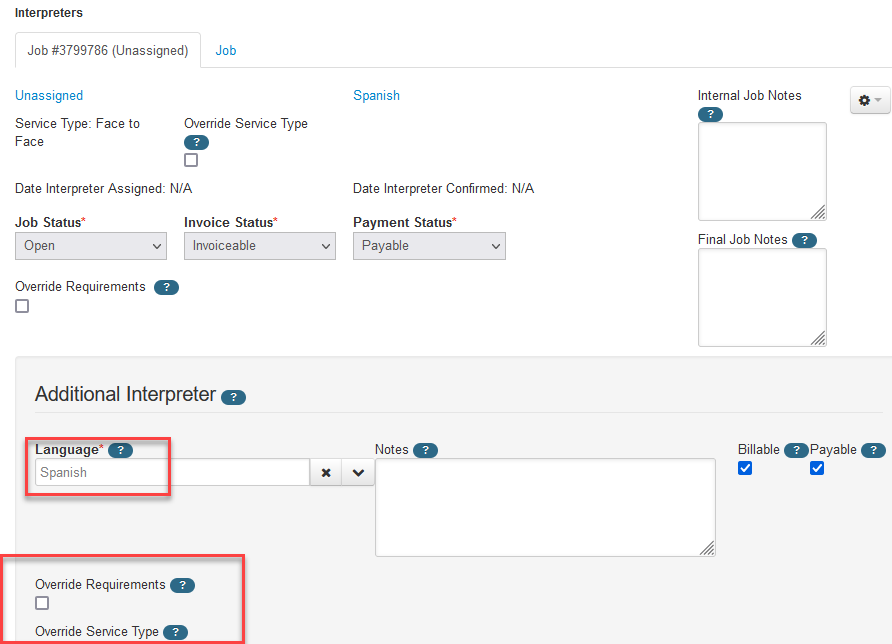
Create a job with 1 interpreter for the Spanish language. This is the default language for the booking. After saving the job, from the Assignments tab, click the "Add Interpreter" link above the existing interpreter job information. At this point, you can specify a different language for this interpreter (as well as requirements and service type as desired). This is the only opportunity to create additional team jobs with different languages.
Note: The Job Details page will continue to display the original language selected (Spanish) regardless of which of the team jobs you are viewing. Do not update this to a different language, as it will update all of the team jobs to that language and you will not be able to modify the individual jobs to different languages. All notifications will reflect the correct language for each job.
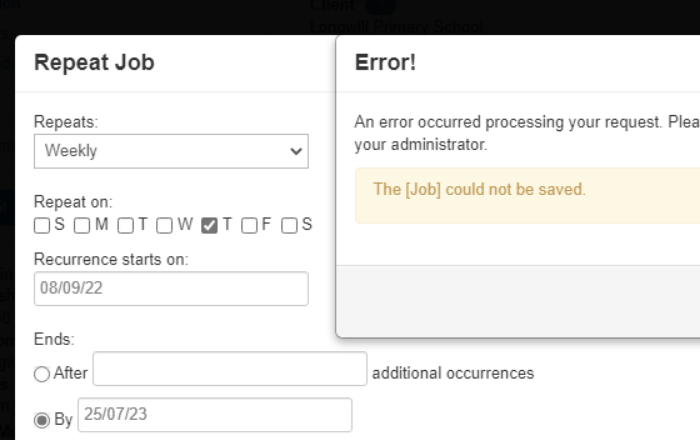
Note: Creating Recurring Jobs - Error Message
An error message can occur when creating a Recurring series using the End By Date option, rather than Ends After # additional occurrences option. To resolve this error message, simply enter the number 1 in the Ends After # of additional occurrences field. This entry will take no action; the field simply requires a value.
Related to