
Videos
Export Payment Report (1.5 minutes w/audio)
Export Invoice Report (1 min no audio)
There are several exports on both Receivables and Payables pages located on the dropdown next to the blue Refresh button.
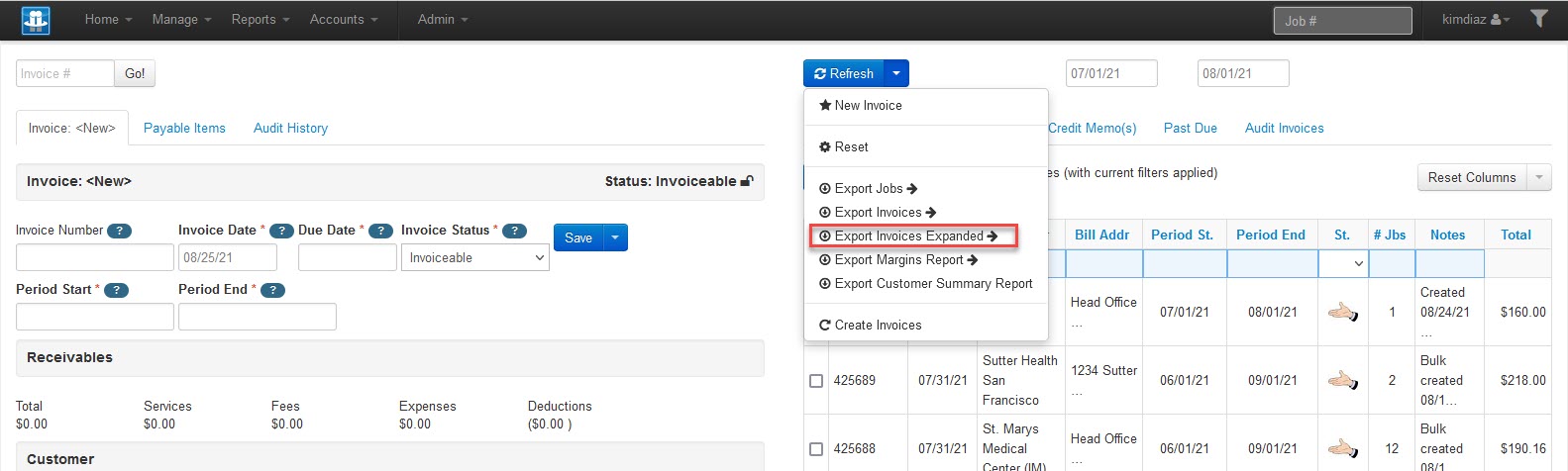
As an example:
From either the Accounts > Payables or the Accounts > Receivables page, set your date range as desired and click on the Payments (or Invoices) tab on the right-hand side of the page. You may also filter the list for specific records by date, name, status, etc. Please remember to set the End Date as 1 day after that last date to be included in the export.
It is not necessary to select any checkboxes; all records will be included in the report.
From the dropdown on the Refresh button select the desired report:
Export Payments > Standard provides information on a per-remittance level (or per-invoice level for Export Invoices)
Export Payments Expanded > Full Details and Export Payments > Expanded provide financial information broken down on a per-job basis.
The report can be downloaded from the Admin > Import/Export menu, from the Export tab.
If you are exporting a large amount of data for a broad date span (e.g. the past year), we recommend breaking the date span into quarterly amounts as the larger exports can take a longer amount of time to run. If you see the export in scheduled or started status, please do not re-run the same export as each one will run separately and will not run any faster if rerun.